How to Handle Alerts in Selenium WebDriver: A Complete Guide
Introduction to Alerts in Selenium WebDriver
Selenium WebDriver is a widely used open-source tool for automating web browsers and testing web applications. It enables testers to simulate user interactions, verify application behavior, and identify defects across different browsers.
During automated testing, you may encounter pop-up dialog boxes that require a specific action before the browser can continue. These dialog boxes are commonly known as JavaScript alerts. If your test script does not handle them correctly, Selenium may be unable to interact with the web page until the alert is resolved.
Learning how to handle alerts in Selenium WebDriver is an essential skill for automation testers. It helps you create reliable test scripts, validate application behavior, and reduce failures caused by unexpected browser dialogs.
This guide explains the different types of alerts, important Selenium alert methods, practical Java code examples, common errors, and best practices for effective alert handling.
What Are Alerts in Selenium WebDriver?
Alerts are browser dialog boxes generated by JavaScript to display information, request confirmation, or collect user input. They appear separately from the normal HTML content of a web page.
For example, a website may display an alert after a user submits a form, ask for confirmation before deleting a record, or request a name through a prompt dialog.
Unlike regular web elements, JavaScript alerts cannot be located using standard Selenium locators such as ID, name, XPath, or CSS selectors. Instead, Selenium provides the switchTo().alert() method to access and interact with the active alert.
Handling these dialogs correctly allows your automation script to continue executing without unnecessary interruptions.
Why Is Alert Handling Important in Automation Testing?
Alert handling is important because unresolved browser dialogs can prevent Selenium from interacting with the underlying page. This can cause commands to fail and interrupt the execution of automated test cases.
Effective alert handling helps testers:
- Verify the message displayed by an application.
- Accept or cancel confirmation dialogs.
- Enter text into JavaScript prompt dialogs.
- Test form submissions and deletion confirmations.
- Improve the reliability of automated regression tests.
- Identify application defects related to unexpected dialogs.
Understanding alert handling is particularly useful when testing web applications that perform sensitive actions, such as deleting records, submitting transactions, or updating user information.
Types of Alerts in Selenium WebDriver
JavaScript provides three commonly used dialog types: alert, confirm, and prompt. Selenium WebDriver can interact with all three through its Alert interface.
1. Simple Alert
A simple alert displays a message and provides an OK button. It is generally used to communicate information to the user.
For example, an application may display a message such as “Your form has been submitted successfully.”
In Selenium, you can retrieve the alert message using getText() and close the dialog using accept().
2. Confirmation Alert
A confirmation alert asks the user to approve or cancel an action. It usually contains OK and Cancel buttons.
For example, an application might ask whether the user wants to delete a customer record.
Use accept() to confirm the action or dismiss() to cancel it. Your test should also verify that the application responds correctly to the selected option.
3. Prompt Alert
A prompt alert asks the user to enter text. It usually contains an input field along with OK and Cancel buttons.
For example, a website may ask a user to enter a name before displaying a personalized message.
Selenium provides the sendKeys() method to enter text into a prompt and accept() to submit it.
Important Selenium WebDriver Alert Methods
Selenium WebDriver provides an Alert interface for interacting with JavaScript dialog boxes. The following methods are commonly used in automation scripts.
| Method | Description |
|---|---|
switchTo().alert() |
Switches the driver’s focus to the active alert. |
accept() |
Accepts the alert, equivalent to clicking OK. |
dismiss() |
Dismisses the alert, equivalent to clicking Cancel where available. |
getText() |
Retrieves the text displayed in the alert. |
sendKeys() |
Enters text into a prompt alert. |
The sendKeys() method is primarily applicable to prompt dialogs. Simple alerts and confirmation dialogs do not provide a text input field.
How to Handle Alerts in Selenium WebDriver Using Java
Before interacting with an alert, make sure the alert is present. Selenium provides switchTo().alert() to access it, while ExpectedConditions.alertIsPresent() can be used with an explicit wait to avoid interacting with the alert before it appears.
Step 1: Import the Required Selenium Classes
The following imports are useful for handling alerts with Java and Selenium WebDriver.
import org.openqa.selenium.Alert;
import org.openqa.selenium.WebDriver;
import org.openqa.selenium.chrome.ChromeDriver;
import org.openqa.selenium.support.ui.ExpectedConditions;
import org.openqa.selenium.support.ui.WebDriverWait;

import java.time.Duration;
These classes allow you to create a browser session, wait for alerts, and interact with dialog boxes.
Step 2: Initialize the WebDriver
Create a WebDriver instance and open the web application you want to test.
WebDriver driver = new ChromeDriver();

driver.get("https://example.com");
Replace the example URL with your test application’s address. Ensure that your Selenium and browser driver setup is configured correctly.
Step 3: Wait for the Alert to Appear
An alert may not appear immediately after an action. Using an explicit wait helps prevent timing-related failures.
WebDriverWait wait = new WebDriverWait(
    driver, Duration.ofSeconds(10)
);

Alert alert = wait.until(
    ExpectedConditions.alertIsPresent()
);
This code waits for an alert to become available for up to 10 seconds. If no alert appears within that period, Selenium throws a timeout exception.
The alert must be triggered by an application action or test setup before this wait can succeed.
How to Accept an Alert in Selenium WebDriver
The accept() method closes a JavaScript alert by selecting its OK button.
For example, suppose a web application displays a success message after a form is submitted. You can accept the alert as follows:
Alert alert = driver.switchTo().alert();

System.out.println(alert.getText());

alert.accept();
The getText() method retrieves the alert message, while accept() closes the dialog.
For greater reliability, use an explicit wait when the alert appears after a user interaction.
How to Dismiss an Alert in Selenium WebDriver
The dismiss() method closes an alert by selecting its Cancel button when the dialog provides one. For a simple alert, the browser may treat dismissal similarly to accepting it, depending on the dialog’s available controls.
Confirmation dialogs are the most common scenario for testing dismissal behavior.
Alert alert = driver.switchTo().alert();

System.out.println(alert.getText());

alert.dismiss();
After dismissing a confirmation dialog, verify that the intended action was cancelled. For example, if a user cancels a deletion request, the corresponding record should remain available.
How to Handle Prompt Alerts in Selenium WebDriver
Prompt alerts contain a text field where users can enter information. Selenium allows testers to provide input using sendKeys().
Consider a JavaScript prompt that asks the user to enter a name. The following example demonstrates how to interact with it.
Alert alert = driver.switchTo().alert();

System.out.println(alert.getText());

alert.sendKeys("John");

alert.accept();
This code retrieves the prompt message, enters the name “John”, and submits the dialog.
To test cancellation behavior, you can dismiss the prompt instead:
Alert alert = driver.switchTo().alert();

alert.sendKeys("John");

alert.dismiss();
Always verify how the application responds to both submission and cancellation. A prompt may return the entered text when accepted or a null value when cancelled, depending on how the page handles the dialog.
Complete Example of Alert Handling in Selenium Java
The following example demonstrates how to wait for an alert, retrieve its text, and accept it. It assumes that the supplied page triggers a JavaScript alert when the relevant test action is performed.
import org.openqa.selenium.Alert;
import org.openqa.selenium.WebDriver;
import org.openqa.selenium.chrome.ChromeDriver;
import org.openqa.selenium.support.ui.ExpectedConditions;
import org.openqa.selenium.support.ui.WebDriverWait;

import java.time.Duration;

public class HandleAlerts {

    public static void main(String[] args) {

        WebDriver driver = new ChromeDriver();

        try {
            driver.get("https://example.com");

            // Perform the action that triggers the alert here.

            WebDriverWait wait = new WebDriverWait(
                driver, Duration.ofSeconds(10)
            );

            Alert alert = wait.until(
                ExpectedConditions.alertIsPresent()
            );

            String message = alert.getText();

            System.out.println("Alert message: " + message);

            alert.accept();

        } finally {
            driver.quit();
        }
    }
}
Important: This is a template rather than a standalone test for example.com. Add the appropriate page interaction that triggers the alert before waiting for it. In a production test suite, assertions should also verify the expected alert message and the application’s behavior after the dialog closes.
Common Problems When Handling Alerts in Selenium
Even when using the correct methods, alert handling can fail if the script interacts with the dialog at the wrong time or assumes that every pop-up is a JavaScript alert.
NoAlertPresentException
This exception occurs when Selenium attempts to interact with an alert that is not currently present.
Solution: Use ExpectedConditions.alertIsPresent() to wait for the alert. Confirm that the action triggering the dialog has actually executed.
TimeoutException
A timeout exception occurs when the expected alert does not appear within the configured waiting period.
Solution: Verify that the application action triggers an alert, check whether the page is loading correctly, and adjust the wait duration when justified by the application’s behavior.
UnexpectedAlertPresentException
This exception can occur when an alert appears while Selenium is attempting to perform another browser operation.
Solution: Handle the unexpected dialog at the appropriate point in the test flow. If needed, configure WebDriver’s unexpected alert behavior for the test scenario, but do not automatically dismiss alerts that are important to the test.
ElementClickInterceptedException
This exception may occur when an alert or another overlay prevents Selenium from clicking a web element.
Solution: Determine whether the blocking element is a JavaScript alert, an HTML modal, or another overlay. Switch to the alert when appropriate, or handle the HTML element using normal Selenium locators.
Confusing JavaScript Alerts With HTML Pop-Ups
Not every pop-up is a browser alert. Websites often use HTML dialogs, modal windows, cookie banners, and custom notifications.
Solution: Use switchTo().alert() only for browser-native JavaScript dialogs. For HTML-based pop-ups, locate the relevant elements using standard Selenium locators and interact with them normally.
Best Practices for Handling Alerts in Selenium WebDriver
Following a consistent approach to alert handling improves test stability and makes debugging easier.
Use Explicit Waits
Wait for an alert to appear instead of assuming it will be available immediately after an action. Explicit waits help synchronize the test with the application’s behavior.
Validate Alert Messages
Do not simply close every alert. Retrieve its message and compare it with the expected text so that the test can detect incorrect application behavior.
Handle Alerts at the Correct Point
Include alert handling directly after the action expected to trigger the dialog. This makes the test easier to understand and reduces unexpected interruptions.
Avoid Unnecessary Thread Sleeps
Fixed delays such as Thread.sleep() can slow down tests and still fail when application response times vary. Prefer explicit waits for conditions such as alert presence.
Use Clear Error Handling
Capture meaningful information when an expected alert does not appear. This helps distinguish application defects from timing problems or incorrect test assumptions.
Test Both Acceptance and Cancellation
For confirmation dialogs, test both accepting and dismissing the alert. Verify the resulting application state instead of checking only whether the dialog closed.
Keep Browser Cleanup Reliable
Use a try-finally block or an appropriate test framework teardown method to close the browser even if alert handling fails.
Real-World Applications of Alert Handling
Alert handling is useful across a variety of web application testing scenarios.
Form submission: Verify success or validation messages displayed through JavaScript alerts after submitting a form.
Record deletion: Confirm that accepting a deletion dialog removes the intended record and dismissing it leaves the record unchanged.
User confirmation: Test actions that require users to confirm changes before the application proceeds.
Input validation: Check whether prompt dialogs accept valid input and handle cancellation or invalid input correctly.
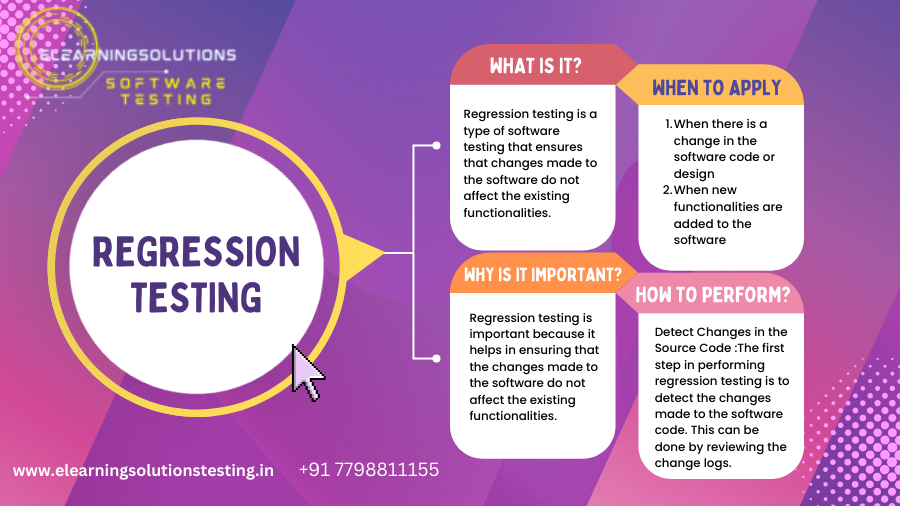
Regression testing: Include alert-related test cases in automated suites to ensure that application changes do not introduce unexpected dialog behavior.
For applications that use CAPTCHA or multi-factor authentication, automated testing should generally use approved test environments, dedicated test accounts, or supported testing mechanisms. Selenium alert methods cannot directly bypass CAPTCHA challenges or automate every authentication flow.
Career Opportunities in Selenium Automation Testing
Learning alert handling is one part of developing a strong foundation in Selenium automation testing. Employers often look for candidates who understand browser automation, programming fundamentals, test design, debugging, and test framework development.
After building practical Selenium skills, learners can pursue roles such as:
- Automation Test Engineer
- Software Test Engineer
- QA Automation Engineer
- Selenium Automation Tester
- Quality Assurance Analyst
To strengthen your skills, practise Java or Python programming, Selenium WebDriver, TestNG or JUnit, Maven, Git, API testing, and continuous integration concepts.
Practical projects that cover login flows, form validation, confirmation dialogs, and regression testing can help demonstrate your abilities during technical interviews.
Learners interested in developing their software testing skills can explore the training resources available at eLearning Solutions: https://www.elearningsolutions.co.in/.
Frequently Asked Questions About Selenium Alert Handling
1. How do you handle alerts in Selenium WebDriver?
Use driver.switchTo().alert() to access the active JavaScript alert. You can then retrieve its text using getText(), accept it using accept(), dismiss it using dismiss(), or enter text into a prompt using sendKeys().
2. What are the three types of alerts in Selenium?
The three common JavaScript dialog types are simple alerts, confirmation alerts, and prompt alerts. Simple alerts display information, confirmation alerts ask users to approve or cancel an action, and prompt alerts request text input.
3. What is the difference between accept() and dismiss()?
The accept() method selects OK, while dismiss() selects Cancel when available. For confirmation dialogs, these actions generally correspond to confirming or cancelling the requested operation.
4. How can you get the text of an alert in Selenium?
Switch to the alert and call the getText() method.
Alert alert = driver.switchTo().alert();
String message = alert.getText();
5. How do you handle an alert that appears after a delay?
Use an explicit wait with ExpectedConditions.alertIsPresent() to wait until the dialog becomes available or the configured timeout expires.
6. Can Selenium handle HTML pop-ups using the Alert interface?
No. The Alert interface is designed for browser-native JavaScript dialogs. HTML pop-ups and modal windows should be handled using Selenium locators and normal WebDriver interactions.
7. Can Selenium handle multiple alerts?
Yes, when alerts appear sequentially, handle each alert after the action that triggers it. Wait for each dialog, perform the required interaction, and continue with the next step. Simultaneous browser-native JavaScript alerts are not generally displayed as independent dialogs.
8. Is alert handling important for Selenium interviews?
Yes. Alert handling is a common Selenium topic because it tests your understanding of browser dialogs, WebDriver methods, synchronization, and exception handling. Candidates should be able to explain the methods and write practical examples.
Conclusion
Handling alerts in Selenium WebDriver is an important skill for building dependable automated tests. By understanding simple alerts, confirmation dialogs, and prompt alerts, you can interact with browser dialogs using the correct Selenium methods.
Remember to use explicit waits, validate alert messages, test both acceptance and cancellation, and distinguish JavaScript alerts from HTML-based pop-ups. These practices help reduce synchronization problems and improve the reliability of your automation scripts.
With consistent practice and real-world testing projects, you can strengthen your Selenium WebDriver skills and prepare for opportunities in software testing and quality assurance.
Explore eLearning Solutions for more learning resources and training opportunities: https://www.elearningsolutions.co.in/.